Time clock and GPS clock-in
No hardware, no PIN pad by the door. Employees clock in and out from their own phone, and GoGoSing checks they are actually at the venue.
Set the clock-in location once
Open Staff → Clock-in Location:
- Stand inside the venue with your phone and hit Use my current location. Your GPS becomes the clock-in center.
- Pick an Allowed radius. 50 m suits most venues; go larger only if GPS is unreliable indoors.
- Set Late grace. Clocking in within this window after shift start still counts as on time, and 15 minutes is the default.
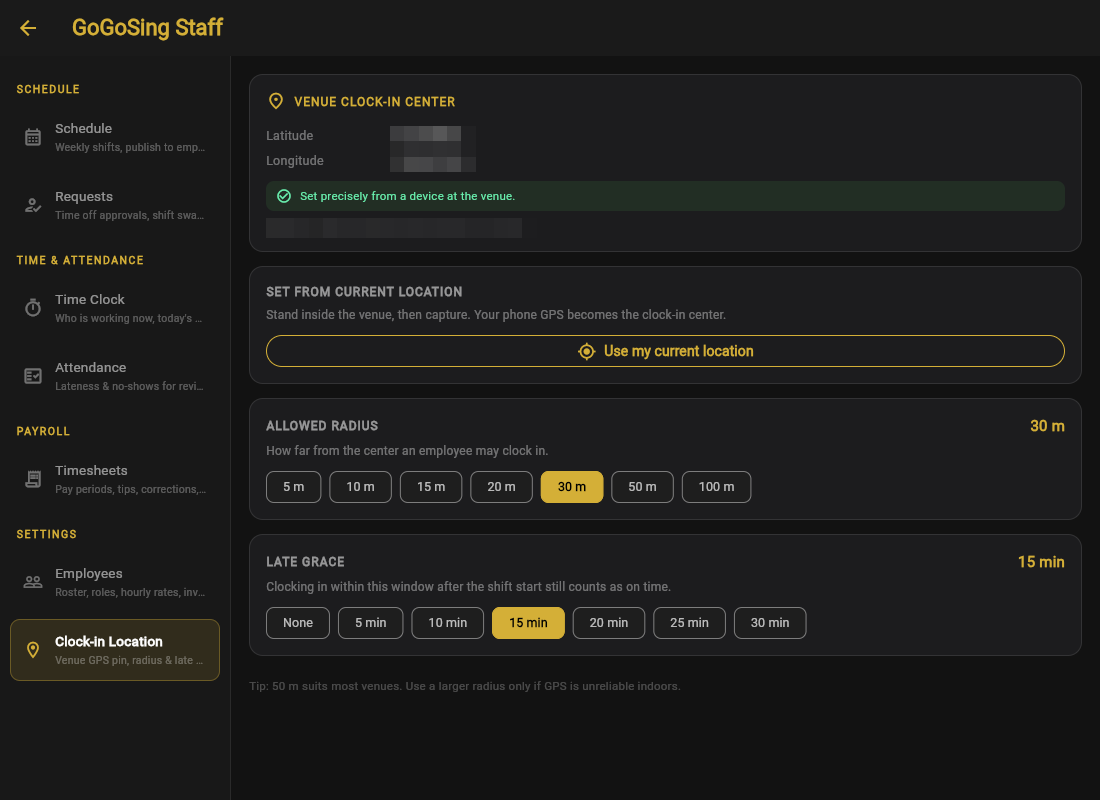
The radius is what makes remote "buddy punching" impossible: clocking in from the parking lot works, clocking in from home does not.
Reviewing the week
Staff → Time Clock is the grid of actual worked time: one cell per person per day, with an IN badge while someone is on the clock.
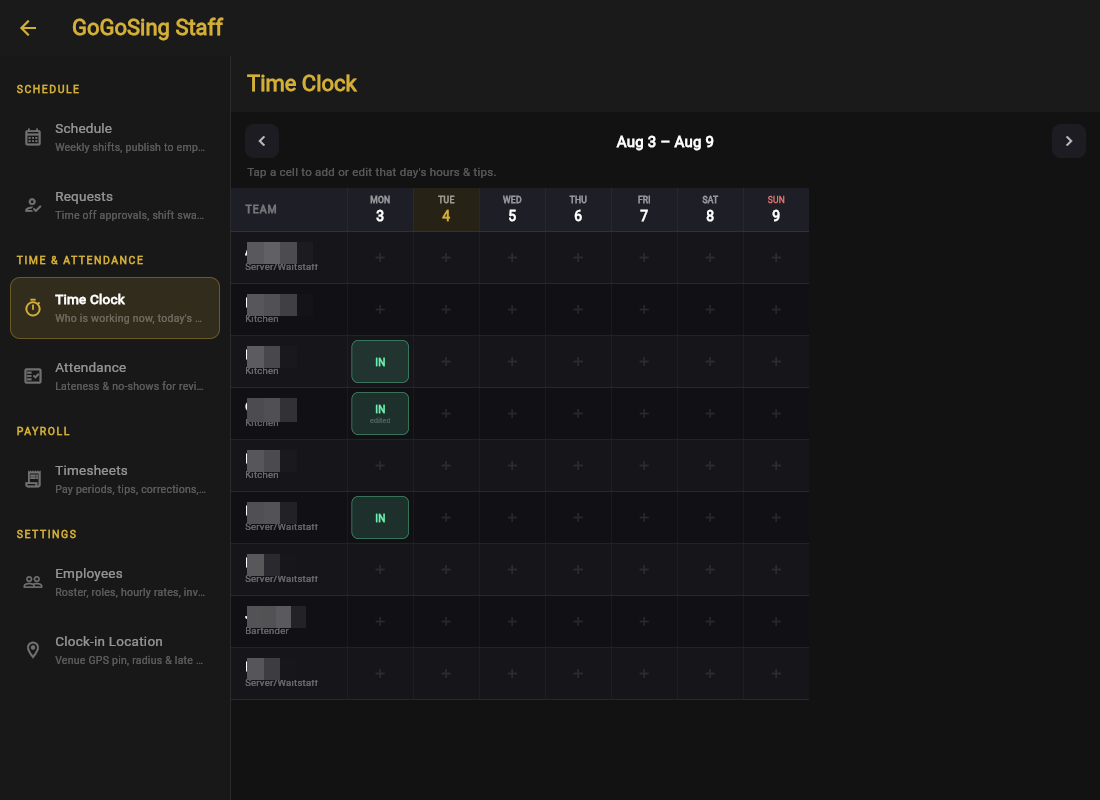
Tap any cell to add or edit that day's hours and tips: the forgotten clock-out, the shift worked off-schedule, or cash tips entered at close. Edited entries are marked edited, so reviewed changes stay distinguishable from raw punches.
Fix a wrong clock-in time by editing the entry. You do not need to clock the person out to correct it, so the fix does not interrupt someone mid-shift.